How to Read Wingdings: Decode Text, Symbols and Images
Start with the source: editable text, copied Unicode symbols and screenshots need different reading methods. The tests below show what our converter actually preserves, what copying removes, and where decoding loses information.
Choose the Method That Matches Your Source
| Source | First step | Why it matters |
|---|---|---|
| Editable text with a symbol font | Check the font, then change a duplicate to a normal text font. | The underlying characters may already be readable letters. |
| Copied Unicode symbols | Use the matching decoder and inspect ambiguous candidates. | Several original keys can share a portable symbol. |
| Image or screenshot | Match glyphs manually against a character chart. | A text converter cannot read image pixels. |
Microsoft’s Wingdings family reference identifies Wingdings, Wingdings 2 and Wingdings 3 as three styles. Webdings has its own font and mapping. Record the source font before you try to decode a message.
Test 1: Font Preview and the Actual Clipboard
Tested September 12, 2026, on Windows 10 build 19045 with Chrome 153.0.8010.37. Wingdings, Wingdings 2, Wingdings 3 and Webdings were installed. We entered each sample, read the copied text from the clipboard, and checked the reverse result in this browser. These are this site's converter results, not an official Microsoft glyph chart or a mobile-device compatibility test.
- Open the translator, select Wingdings 1, enter
ABCand turn Emojis off. - The output looks like symbol glyphs on this machine. Select Copy text, clear the input and paste the clipboard back into it.
- The input returns to
ABC. The clipboard contains letters, not the font styling shown in the output panel.
| Font / mode | Input | Displayed output | Copied and pasted text |
|---|---|---|---|
| Wingdings 1 / Emojis off | ABC | Installed-font glyphs; see screenshot | ABC |
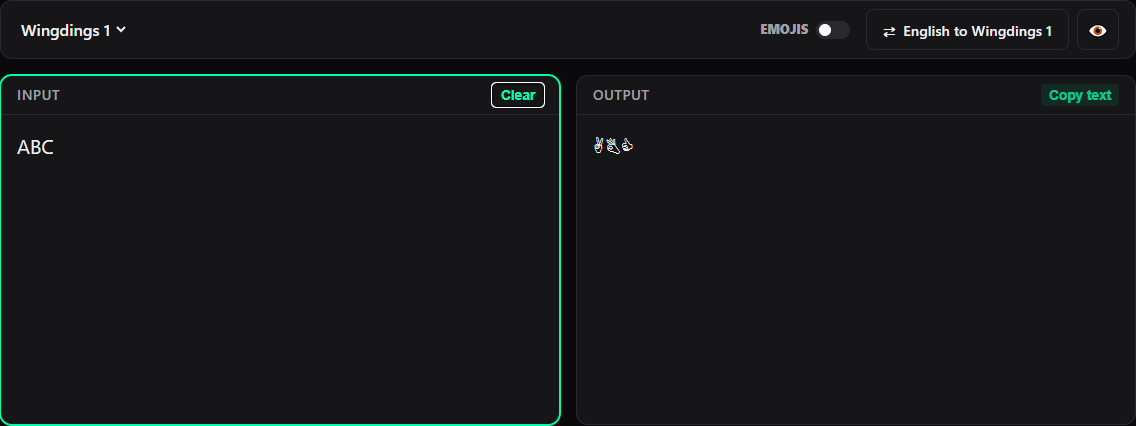
For editable text in a document, duplicate it and apply a normal font to inspect the underlying characters. This is a different operation from decoding Unicode symbols. We did not test Word, Google Docs or mobile apps in this browser run.
Test 2: Unicode Output Is Not Always Reversible
For each row we entered the input with Wingdings 1 and Emojis on, copied the output, then switched direction and copied the decoded result. The table records the actual strings.
| Font / mode | Input | Output / copied text | Reverse result | What the test shows |
|---|---|---|---|---|
| Wingdings 1 Emojis on | ABC | ✌✆👍 | ABC | The reverse result matches the input, but ✆ is ambiguous: the decoder selects B from B/). Matching output alone does not prove a unique reversal. |
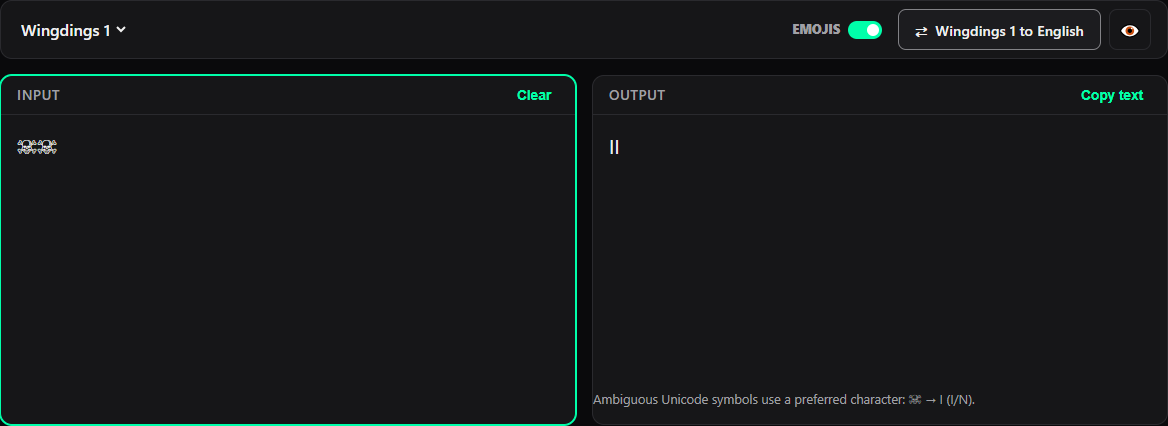
| Wingdings 1 Emojis on | IN | ☠☠ | II | Both letters become ☠. The decoder selects I from I/N, so the original N is lost. |
| Wingdings 1 Emojis on | A中 | ✌中 | A中 | 中 has no Unicode mapping and stays unchanged. It is not translated into a symbol. |
The ABC example returns the original text, yet the decoder still warns that ✆ can mean B or ). For IN, both keys become ☠; the default choice is I, yielding II. Context may help a reader choose a candidate, but the copied symbols do not retain the missing distinction.
A中 produces ✌中. The unchanged character is evidence of an unmapped input, not a successful translation of Chinese. The tool reports that limitation next to its output.
Method 3: Read an Image with a Character Chart
A screenshot contains pixels rather than selectable source characters. This site does not upload or recognize images. Keep a copy, enlarge it without stretching, and preserve spaces and line breaks before comparing glyphs.
- Use the Wingdings 1 alphabet chart, Wingdings 2 chart, or cross-font symbol library to identify candidates.
- Compare direction, outline, fill and small internal details. Write down the corresponding keys, including case.
- Mark uncertain characters instead of silently choosing one. Recheck the complete sequence against the source image.
Portable symbols are lookup aids, not guaranteed copies of a font's outlines. Do not identify a glyph solely by its apparent meaning: a telephone symbol may represent a key, not the word “phone.”
Further Examples and Source Notes
The Wingdings 2 test covers circled numbers and a V/8 collision; the Wingdings 3 test covers arrows and A/B ambiguity; the Webdings test checks pictograms and letter case.
Unicode working document N4363, dated October 13, 2012, records the historical encoding status of Wingdings and Webdings symbols. It is background on that encoding work, not a current complete standard or a validation of this site's approximation table.
Questions Beyond the Examples
Can I read Wingdings without memorizing the alphabet?
Yes. Keep the source and a character chart side by side, transcribe a short sequence, and mark uncertain matches. Memorization is not required.
Does readable decoded text prove that I chose the correct font?
No. A short sequence can look plausible by chance. Check additional characters, the source font if available, and any ambiguous candidates before accepting the result.