How to Find Wingdings in Word: Step-by-Step Guide with Screenshots
Looking for checkmarks, checkboxes, arrows, or decorative dingbats in Microsoft Word? Because Word separates regular text typing from special character picking, Wingdings is kept inside the extended symbol dialog. Follow this step-by-step visual tutorial to find Wingdings on Windows, Mac, and Word Online, jump directly to symbols using character codes, and prevent font formatting from breaking when shared.
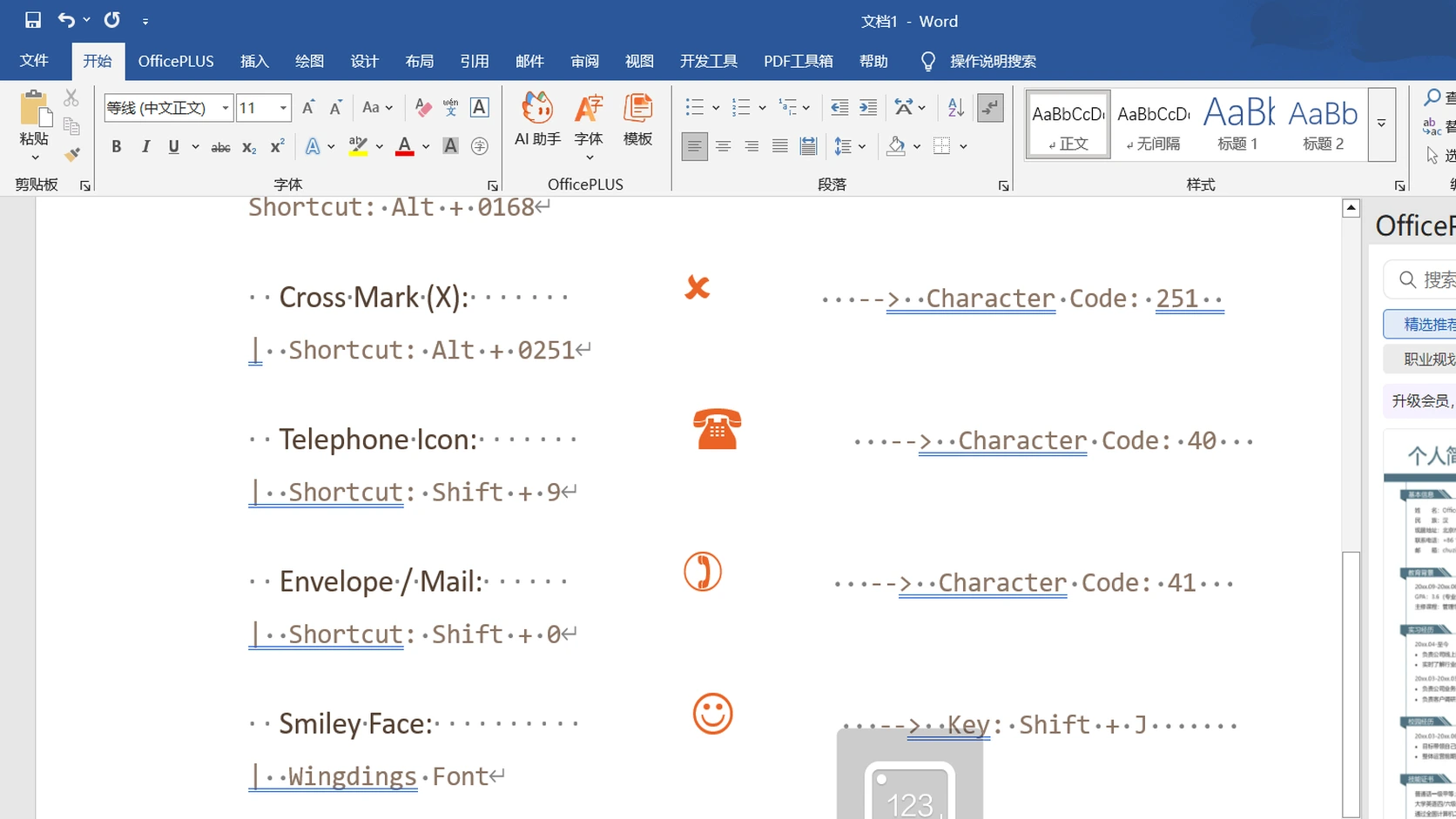
Why Is Wingdings Hard to Find in Microsoft Word?
Wingdings is a dingbat symbol font rather than a standard text alphabet. While Microsoft Windows installs Wingdings, Wingdings 2, and Wingdings 3 by default, Word separates ordinary typing from visual symbol selection.
When you click the Insert → Symbol button on the ribbon, Word displays only a small tray of recently used punctuation marks (such as ©, ®, or basic mathematical operators). If you have not opened Wingdings on your current computer yet, that tray will not show any dingbats. To view the hundreds of icons available in the font, you need to open Word's full Symbol dialog.
Step-by-Step: How to Find and Insert Wingdings in Word
This workflow applies to Microsoft 365, Word 2024, Word 2021, Word 2019, and Word 2016 on desktop.
Step 1: Open the "More Symbols..." Menu
Place your cursor in your document where the symbol should appear, then follow these ribbon steps:
- Click the Insert tab on the top ribbon.
- On the far right side of the ribbon (under the Symbols group), click Symbol.
- At the bottom of the dropdown menu, click More Symbols....
Step 2: Change the Font Dropdown to Wingdings
When the Symbol window opens, navigate the font picker:
- Locate the Font: selector in the upper-left corner of the dialog. It defaults to
(normal text). - Click the dropdown arrow. Scroll down to the "W" section, or select the box and type Wingdings.
- Press Enter. The character grid will display the complete Wingdings collection, including pencils, scissors, telephones, envelopes, smileys, checkboxes, and stars.
- Click any symbol to select it, then click Insert. The dialog stays open so you can insert several symbols in sequence.
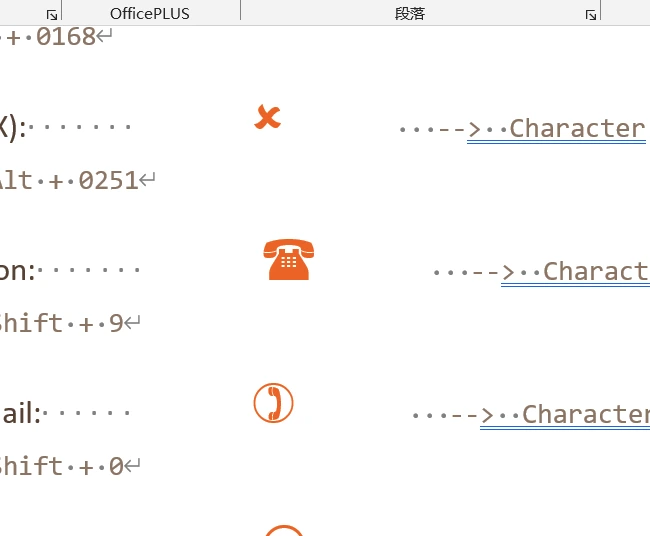
How to Find Wingdings in Word for Mac
On macOS, the menu structure differs slightly depending on your Office version:
- Using Word Menus: Click Insert in the top menu bar → select Advanced Symbol. In the dialog that opens, select Wingdings from the Font dropdown.
- Using macOS Character Viewer: Press Control + Command + Space to open the Mac emoji and symbol picker. This inserts universal Unicode symbols directly without requiring font dependencies.
How to Insert Wingdings Using Character Codes & Alt Shortcuts
Browsing through hundreds of small icons every time you need a checkmark or checkbox takes unnecessary time. Word offers two direct methods to reach specific Wingdings symbols without manual scrolling.
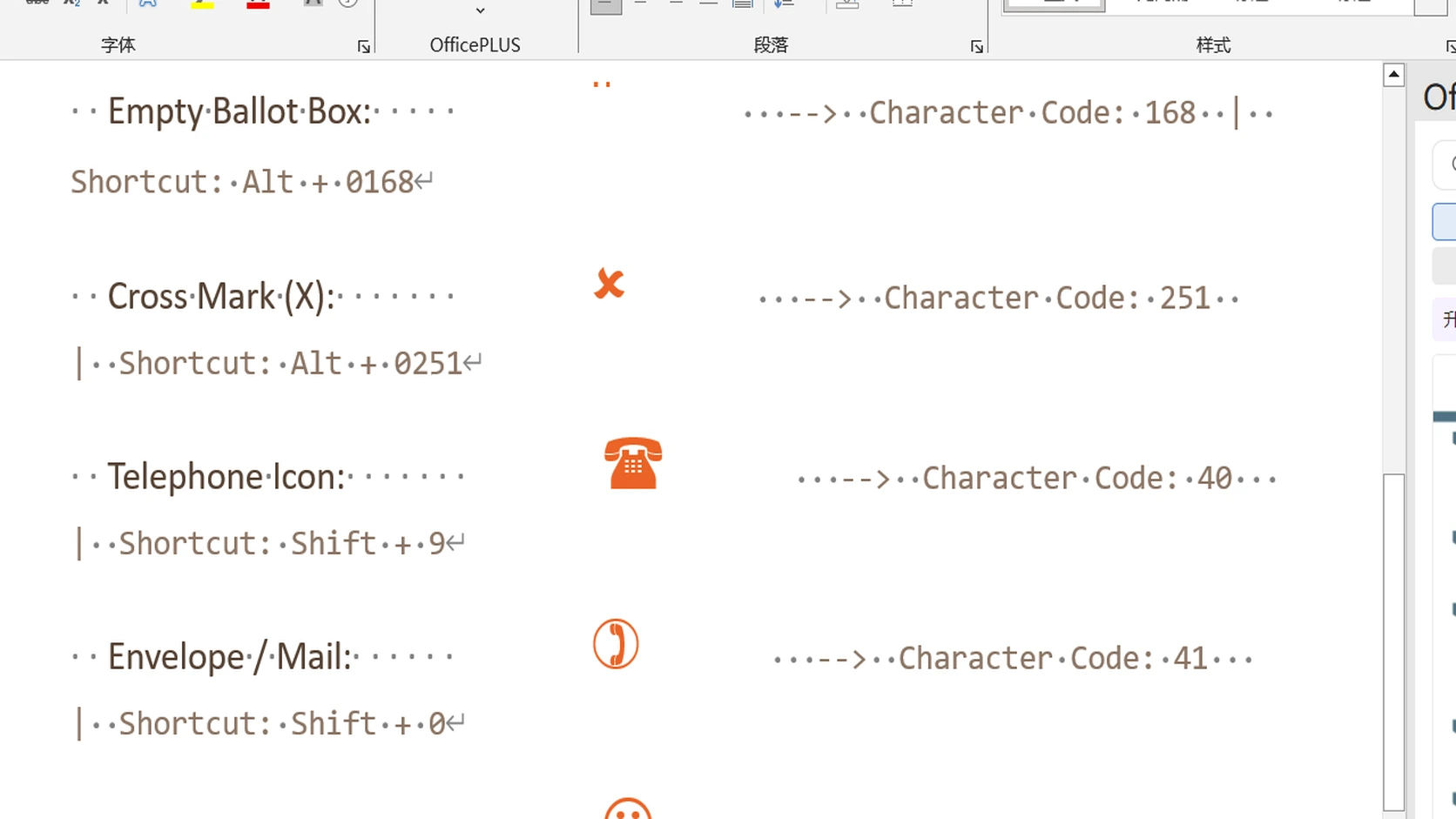
1. The Character Code Box (Inside the Symbol Dialog)
With the Symbol dialog open and Wingdings selected, locate the Character code: box at the bottom right. Enter the decimal number for your symbol (for example, type 252 for a checkmark). Word highlights that symbol in the grid immediately, and you can click Insert.
2. Windows Alt Keyboard Codes (Direct from Keyboard)
You can also insert symbols directly from your keyboard without opening the dialog:
- Make sure Num Lock is turned on.
- Hold down the Alt key.
- Type the 4-digit code (such as 0252) on the physical numeric keypad on the right side of your keyboard (not the number row above letters).
- Release the Alt key.
- If the character appears as an accented letter (such as
ü), select the character and change its font to Wingdings on the Home ribbon.
| Symbol Preview | Description | Font | Symbol Dialog Code | Windows Alt Shortcut |
|---|---|---|---|---|
| ✔ | Check Mark (Tick) | Wingdings | 252 |
Alt + 0252 |
| ☑ | Check Mark in Box | Wingdings | 254 |
Alt + 0254 |
| ☐ | Empty Ballot Box | Wingdings | 168 |
Alt + 0168 |
| ✖ | Heavy Cross / X Mark | Wingdings | 251 |
Alt + 0251 |
| ☒ | X in Box | Wingdings | 253 |
Alt + 0253 |
| ☎ | Telephone | Wingdings | 40 |
Alt + 040 |
| ✉ | Envelope / Mail | Wingdings | 41 |
Alt + 041 |
| ➔ | Right Arrow | Wingdings 3 | 224 |
Alt + 0224 |
For a complete reference of every keystroke across the entire font, consult our interactive Wingdings Alphabet Chart and the searchable Wingdings Symbols Directory.
How to Type Wingdings from the Keyboard via the Font Selector
Because Wingdings maps its symbols directly over standard ASCII keystrokes, you can type symbols by switching fonts directly on the ribbon:
- Click the Home tab on the ribbon.
- In the Font box, type
Wingdingsand press Enter. - Type directly using your keyboard keys:
- Uppercase J produces a smiling face.
- Uppercase K produces a neutral face.
- Uppercase L produces a sad face.
- Uppercase letters A through H produce victory signs, pointing hands, and writing hands.
- When finished, set your font back to
Calibri,Aptos, orArialto resume normal text typing.
Why Can't I Find Wingdings in Word? (Troubleshooting Common Issues)
1. Word for the Web (Word Online)
In Word for the Web (the browser version included with Microsoft 365), the Symbol menu shows only basic currency, punctuation, and math characters. Web browsers cannot reliably render local desktop dingbat font overrides inside web forms.
The Fix: Use our free Wingdings Translator. Enter your text or select your desired symbol, keep Emojis enabled, and click Copy symbols. This places universal Unicode characters (such as ✔, ✉, ✈) onto your clipboard, which paste and render consistently across Word Online, Google Docs, Teams, and email clients. For Google Docs users, check our companion tutorial on how to use Wingdings in Google Docs.
2. Missing Font File on Windows
Custom Windows installations, debloated enterprise images, or font manager conflicts can unregister or delete font files from the system folder.
How to Verify: Press Win + R, type fonts, and press Enter. Verify whether Wingdings, Wingdings 2, and Wingdings 3 are installed. If missing, follow our Wingdings font download & installation guide to safely restore the original Microsoft TrueType files (wingding.ttf).
3. Symbols Reverting to Letters When Pasted
When someone opens your document on a mobile device or copies text into an email, Wingdings checkmarks often revert to lowercase letters like u, p, or n. This happens because classic Wingdings depends on the recipient having the font installed and active.
To keep symbols intact across different platforms:
- Export your Word document as a PDF before emailing or sharing (Word embeds font subsets into PDF files).
- Or use modern Unicode symbols from the Segoe UI Symbol font family.
Wingdings vs. Modern Unicode (Segoe UI Symbol)
Microsoft designed Segoe UI Symbol and Segoe UI Emoji to replace legacy font overrides with standard Unicode characters. Here is how they compare:
| Feature | Classic Wingdings | Modern Unicode (Segoe UI / Web) |
|---|---|---|
| Encoding Type | Legacy ASCII glyph override | Standard universal Unicode code points |
| Cross-Platform Copy/Paste | Fragile (reverts to letters in plain text) | Universal (retains symbols everywhere) |
| Word Online Support | Limited menu integration | Full native display |
| Print Fidelity | Excellent in desktop Word | Excellent across all printers |
Frequently Asked Questions
Where is Wingdings located in Word 365?
In Word 365, click Insert → Symbol → More Symbols.... In the dialog box, change the Font field from (normal text) to Wingdings. The full grid of dingbat symbols will appear immediately.
What is the keyboard shortcut for a checkmark in Word?
With your font set to Wingdings, press Alt + 0252 on your numeric keypad to insert a checkmark (✔), or Alt + 0254 for a checkmark inside a box (☑).
How do I use Wingdings 2 and Wingdings 3 in Word?
Follow the same path: Insert → Symbol → More Symbols..., then choose Wingdings 2 (for astrological icons, filled stars, and circled numbers) or Wingdings 3 (for directional arrows and triangles) from the Font dropdown menu.
Can I use Wingdings in Word on mobile (iPhone or Android)?
The Word mobile app does not include the desktop symbol font selector. To use dingbat symbols on mobile, copy them from our online Wingdings translator and paste them directly into your mobile document.