Checkmark in Wingdings: Shortcuts, Character Codes & Copy-Paste (✓ ☑)
Need to type a checkmark in Wingdings fast? Whether you are building an inspection checklist in Microsoft Word, scoring a spreadsheet in Excel, or tracking daily tasks, hunting through hundreds of font symbols is frustrating. Here is the definitive cheat sheet for every checkmark (✓), bold tick (✔), and ballot box (☑) across Wingdings and Wingdings 2, including Alt codes, keyboard shortcuts, and universal Unicode copy-paste options that never break.
Fastest Answer: Tap to Copy Universal Checkmarks
If you need a checkmark right now for an email, Slack, web form, Google Docs, or a text message, do not rely on font styling. Font-styled checkmarks revert to regular letters when pasted outside Word. Click any tile below to copy a universal Unicode symbol directly to your clipboard:
Pro Tip: Looking to convert full sentences or encrypted Gaster lore into dingbats? Use our interactive Wingdings Translator or explore the Wingdings 2 Character Chart to convert symbols in both directions.
Wingdings Checkmark Master Code Chart
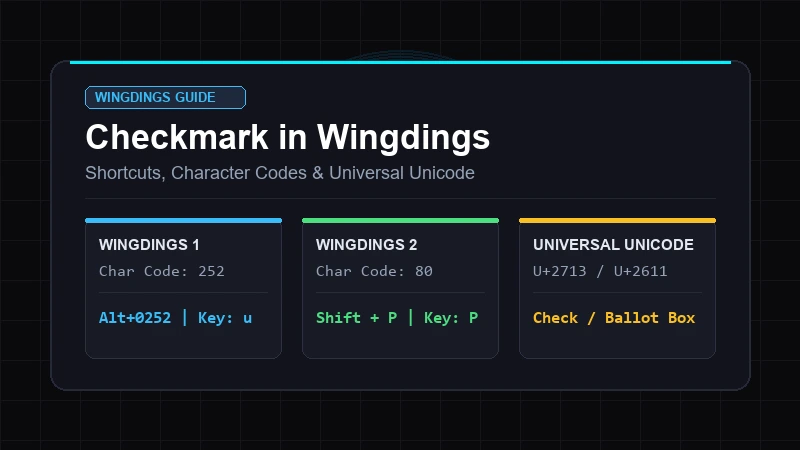
Microsoft includes two dingbat fonts with checkmark symbols: Wingdings (the 1990 original) and Wingdings 2 (introduced in 1997 with additional office marks). Below are the exact character codes, keyboard keystrokes, and Windows Alt codes for each style:
| Symbol | Description | Font Family | Keystroke | Decimal Code | Windows Alt Code | Unicode Equivalent |
|---|---|---|---|---|---|---|
| ✓ | Standard Check Mark (Light) | Wingdings 2 | P (Shift + P) | 80 | Alt + 080 | U+2713 (✓) |
| ✔ | Heavy Check Mark (Bold) | Wingdings | ü (u-umlaut) | 252 | Alt + 0252 | U+2714 (✔) |
| ☑ | Ballot Box with Check (Square) | Wingdings | þ (thorn) | 254 | Alt + 0254 | U+2611 (☑) |
| ☑ | Ballot Box with Bold Check | Wingdings 2 | R (Shift + R) | 82 | Alt + 082 | U+2611 (☑) |
| ✗ | Cross / X Mark (Negative) | Wingdings 2 | O (Shift + O) | 79 | Alt + 079 | U+2717 (✗) |
| ☒ | Ballot Box with X Mark | Wingdings | ý (y-acute) | 253 | Alt + 0253 | U+2612 (☒) |
How to Insert Checkmarks in Microsoft Word
Microsoft Word gives you multiple ways to add checkmarks to your document depending on your workflow:
Method 1: Windows Alt Code (Fastest on Desktop)
- Place your cursor where you want the check mark in your Word document.
- Change your font to Wingdings on the Home ribbon.
- Hold down the Alt key on your keyboard.
- Using the numeric keypad on the right side of your keyboard (Num Lock enabled), type 0252.
- Release the Alt key. A bold checkmark (✔) appears immediately. For a checked box, type Alt + 0254.
Method 2: Wingdings 2 Capital Letter "P" (Simplest Shortcut)
If you find typing four-digit Alt codes tedious, Wingdings 2 provides an even easier trick:
- Highlight the spot where you want the mark and set the font dropdown to Wingdings 2.
- Press Shift + P (capital letter
P). It instantly renders as a clean checkmark (✓). - Need a checked ballot box? Press Shift + R (capital letter
R). - Need an X mark for an unchecked item? Press Shift + O (capital letter
O).
Method 3: The "Insert Symbol" Dialog
If you don't have a numeric keypad or prefer a visual picker, you can locate it in Word's built-in symbol library (see our full guide on how to find Wingdings in Word):
- Click the Insert tab on the Word ribbon.
- Click Symbol at the far right, then choose More Symbols...
- In the dialog window, set the Font dropdown to Wingdings.
- Scroll to the very bottom row of the grid, or enter
252in the Character code: box. - Click Insert, then close the dialog.
Native Word Unicode Shortcut: In desktop Word, you don't even have to change your font to Wingdings. Type 2713 in any regular font (Calibri, Arial, Aptos) and immediately press Alt + X. Word converts the hex code directly into a universal Unicode checkmark ✓!
How to Insert Wingdings Checkmarks in Microsoft Excel
Excel spreadsheets frequently need checkmarks for attendance trackers, project checklists, and KPI status reports. Here are the two most effective methods in Excel:
1. The Wingdings 2 Formula & Column Trick
This is the industry-standard method used by Excel power users:
- Select the entire status column (e.g., column C) and change its font to Wingdings 2.
- Whenever an item is complete, type capital P into the cell. It displays as a checkmark ✓.
- If an item failed or was rejected, type capital O. It displays as an X mark ✗.
- Automating with IF formulas: You can calculate checkmarks automatically. For example:
=IF(B2>=100, "P", "O")
When formatted with Wingdings 2, cell values over 100 will display a green checkmark, while lower values display an X!
2. Excel Double-Click VBA Checkbox
If you prefer clicking cells to toggle checkmarks on and off without a keyboard, right-click your worksheet tab, click View Code, and paste this lightweight snippet:
Private Sub Worksheet_BeforeDoubleClick(ByVal Target As Range, Cancel As Boolean)
    If Not Intersect(Target, Range("A2:A50")) Is Nothing Then
        Cancel = True
        Target.Font.Name = "Wingdings 2"
        If Target.Value = "P" Then
            Target.Value = ""
        Else
            Target.Value = "P"
        End If
    End If
End Sub
Now, double-clicking any cell between A2 and A50 instantly toggles a crisp checkmark on and off!
Checkmarks on Mac, Chromebook & Google Docs
Because the classic Windows Alt + numeric keypad shortcut does not exist on macOS, Mac users often struggle with Wingdings symbols. Here is how to insert checkmarks on non-Windows platforms:
On macOS (Apple Mac / MacBook)
- Keyboard Viewer: Press Control + Command + Space to launch the macOS Character Viewer. Search for check and click your preferred symbol.
- Font Formatting: Set the font of the selection to Wingdings 2 in Word for Mac or Pages, then press Shift + P.
In Google Docs & Web Browsers
As documented in our guide to Wingdings in Google Docs, Google Docs does not support local dingbat font substitutions. Setting a Google Doc to Wingdings is not possible because web fonts must be real Unicode typefaces.
To insert a checkmark in Google Docs: go to Insert → Special characters, type check into the search box, and click the checkmark symbol.
Why Wingdings Checkmarks Break (The "ü" Glitch Explained)
Have you ever spent hours perfecting a checklist in Word, emailed the document or copied the text into an email, only to have the recipient reply: "Why are there lowercase 'ü' and 'p' letters all over your document?"
The Technical Root Cause: As explained in our deep dive into what Wingdings is, Wingdings does not encode a true "checkmark" character. When you type character 252 in Wingdings, the underlying binary data stored by the computer is the Latin byte 0xFC (the letter ü). Wingdings simply replaces the glyph drawing for 0xFC with an illustration of a checkmark.
When you copy this text into an email client, web browser, Slack, or mobile app, the destination app does not copy the local font styling. Instead, it reads the raw byte 0xFC using standard Unicode UTF-8, which renders the Latin character ü.
| Approach | Underlying Character | In Word (With Font) | In Email / Chat / Mobile | Reliability |
|---|---|---|---|---|
| Wingdings 1 (Char 252) | ASCII / Latin ü (0xFC) |
✔ (Checkmark) | ü (Letter u with umlaut) | ❌ Breaks without local font |
| Wingdings 2 (Char 80) | ASCII P (0x50) |
✓ (Checkmark) | P (Capital letter P) | ❌ Breaks without local font |
| Universal Unicode (U+2713) | Unicode Codepoint ✓ |
✓ (Checkmark) | ✓ (Checkmark everywhere) | ✅ 100% Cross-platform |
The takeaway: Use Wingdings shortcuts inside closed Word and Excel files when printing or exporting to fixed PDF. But whenever text is meant to be shared digitally, emailed, or posted online, always copy and paste native Unicode checkmarks (✓, ✔, ☑).
Frequently Asked Questions
What key is the checkmark in Wingdings?
In original Wingdings, the check mark is assigned to character code 252, which maps to the key ü (u with umlaut) or Alt + 0252. In Wingdings 2, the check mark maps to capital letter P (Shift + P, character code 80).
What is the keyboard shortcut for a checkmark in Word?
With your font set to Wingdings, press Alt + 0252 on your numeric keypad for a checkmark (✔), or Alt + 0254 for a checked box (☑). In regular fonts, type 2713 and press Alt + X.
What is the difference between Wingdings and Wingdings 2 checkmarks?
Wingdings 1 contains a bold, heavy tick mark (code 252) and a checked box (code 254). Wingdings 2 adds a refined, lighter tick mark (code 80, Shift + P) and additional variations of boxed checkmarks and cross marks (Shift + R and Shift + O).
How can I make an interactive, clickable checkbox in Word?
Wingdings checkmarks are static text characters and cannot be clicked to toggle. To create an interactive clickable checkbox in Microsoft Word, enable the Developer tab in Word options, then click the Check Box Content Control button in the Controls group.